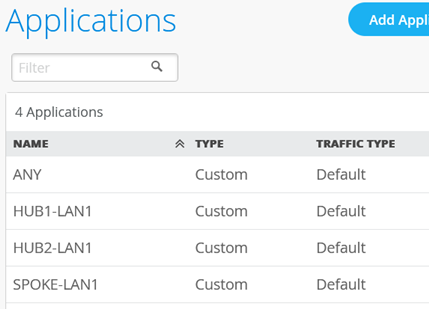
For users to access applications, we will first define the Applications and then use Application Policies to permit or deny access.
Let’s now have a look how we can define Applications.
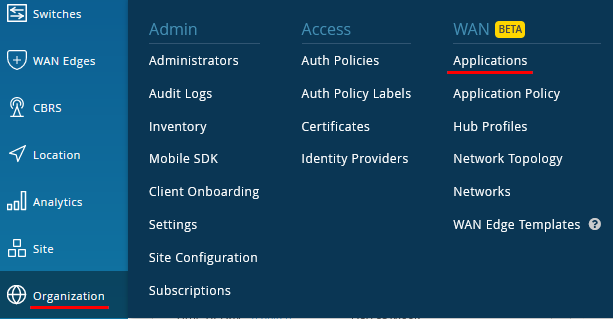
Go to Organization -> Applications.
In Mist WAN Assurance, we can define Applications in 3 ways: Custom Apps, Apps or URL Categories, explained below:
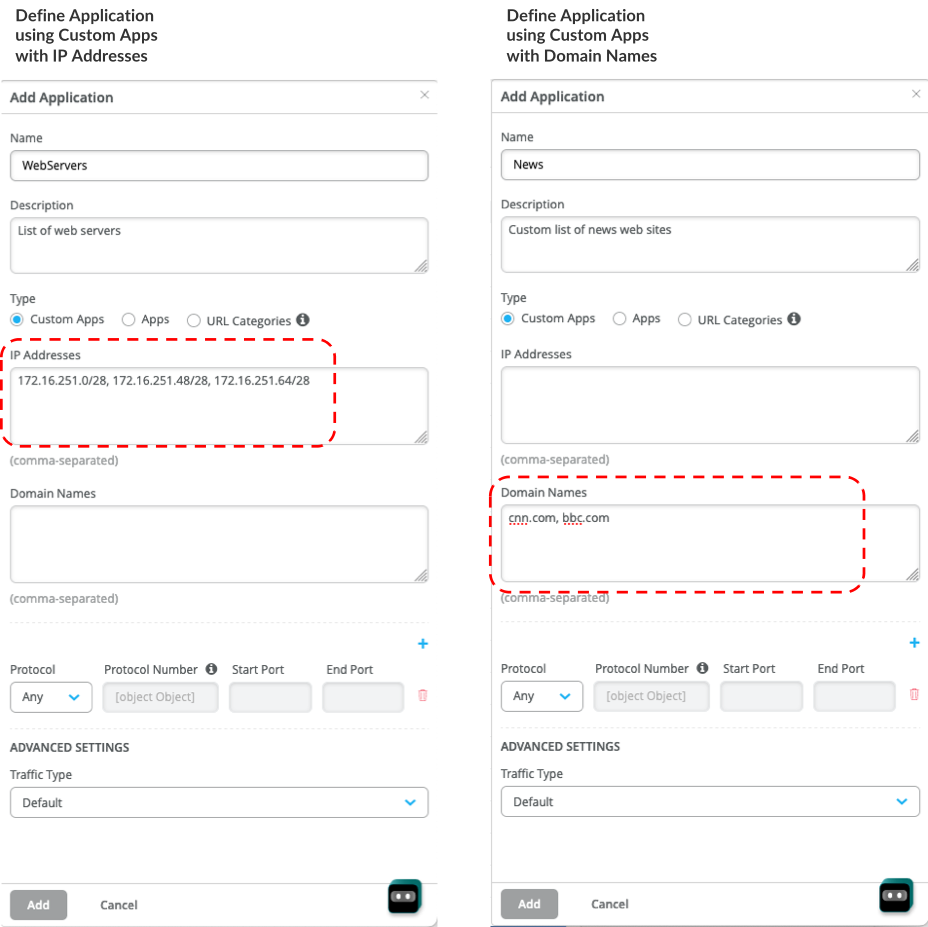
- Application > Custom Apps: The Application as “Custom App” can be defined as Destination IP Addresses (e.g. 172.16.251.0/28) or as Domain Names (FQDN, e.g. cnn.com). Multiple Destination IP addresses or Domain Names can be used to define one Application, separated by a comma.
We can also select the Protocol (any, TCP, UDP, ICMP, GRE or Custom) and Port Range to narrow down our selection.
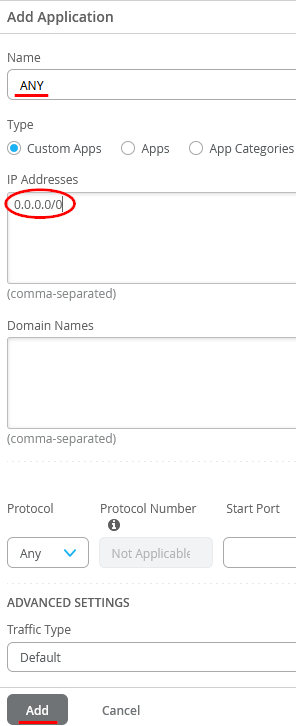
“0.0.0.0/0” can be used to define destination any, i.e. the default route.
An example of Application using Custom Apps with IP Addresses and another using Domain Names is shown below:
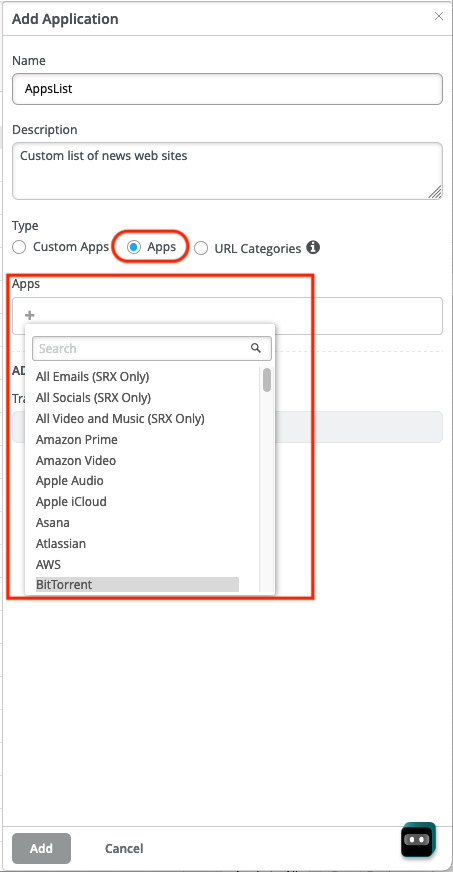
- Application > Apps : Select one or multiple Apps from a predefined list of Apps presented in the drop down menu when pressing the “+” symbol.
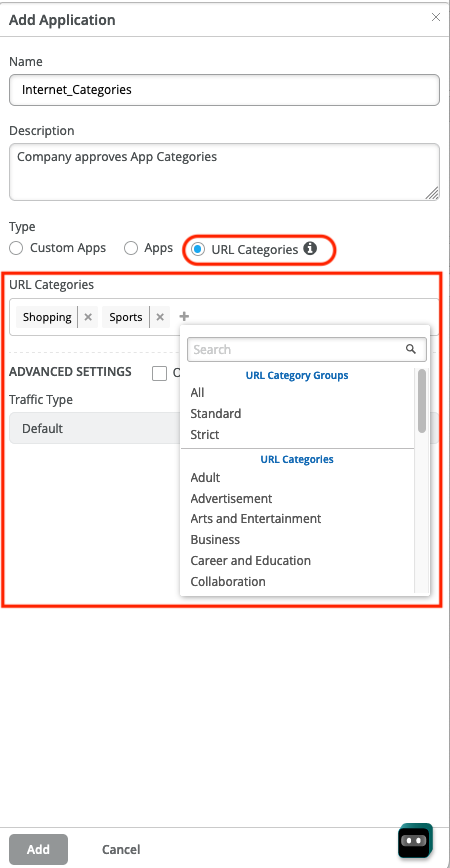
- Application > URL Categories: Mist offers a list of URL Categories (e.g. Shopping, Sports, etc.) that can be selected to define the Application. Multiple Categories can be selected and defined as a single Application.
Go to Organization -> Applications.
In our Lab example we only use IP-Prefixes for Applications.
First, we configure a catch-up for all IP-Addresses. Add an application with the name set to “ANY” and under IP-Addressed just configure the single IP-Prefix 0.0.0.0/0. This might get something to be automatically defined in the future.
Secondly, we configure a match criterion for all IP-Addresses inside the Corporate VPN used. Those are typically assigned directly or indirectly to all LAN-Interfaces of our Hubs and Spokes. Add an Application with the name set to “SPOKE1-LAN” and under IP-Addresses just configure the single IP-Prefix 10.0.0.0/8. At the start we only use the 3 IP-Prefixes 10.77.77.0/24 + 10.88.88.0/24 + 10.99.99.0/24 and we could only configure those, but such a wild-card match criteria would allow easy extensions in the future with no need to change a medicated ruleset to all devices in your environment.

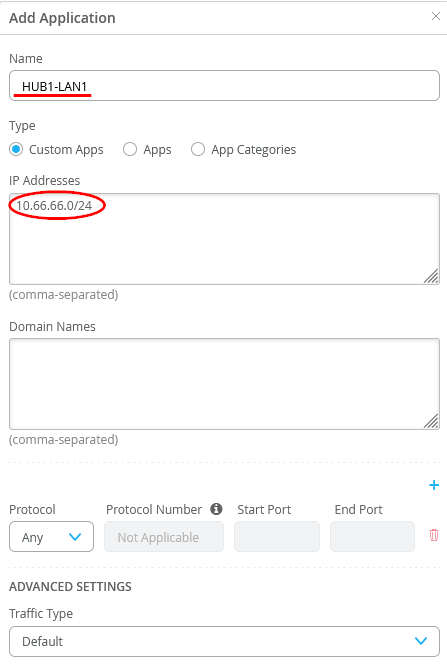
Third we configure a match criterion for all IP-Addresses attached at the LAN-Interface of Hub1. Add an Application with the name set to “HUB1-LAN1” and under IP-Addresses just configure the single IP-Prefix 10.66.66.0/24 for now.
Fourth we configure a match criterion for all IP-Addresses attached at the LAN-Interface of Hub2. Add an Application with the name set to “HUB2-LAN1” and under IP-Addresses just configure the single IP-Prefix 10.55.55.0/24 for now.

The end result overview should look like the below summary picture.